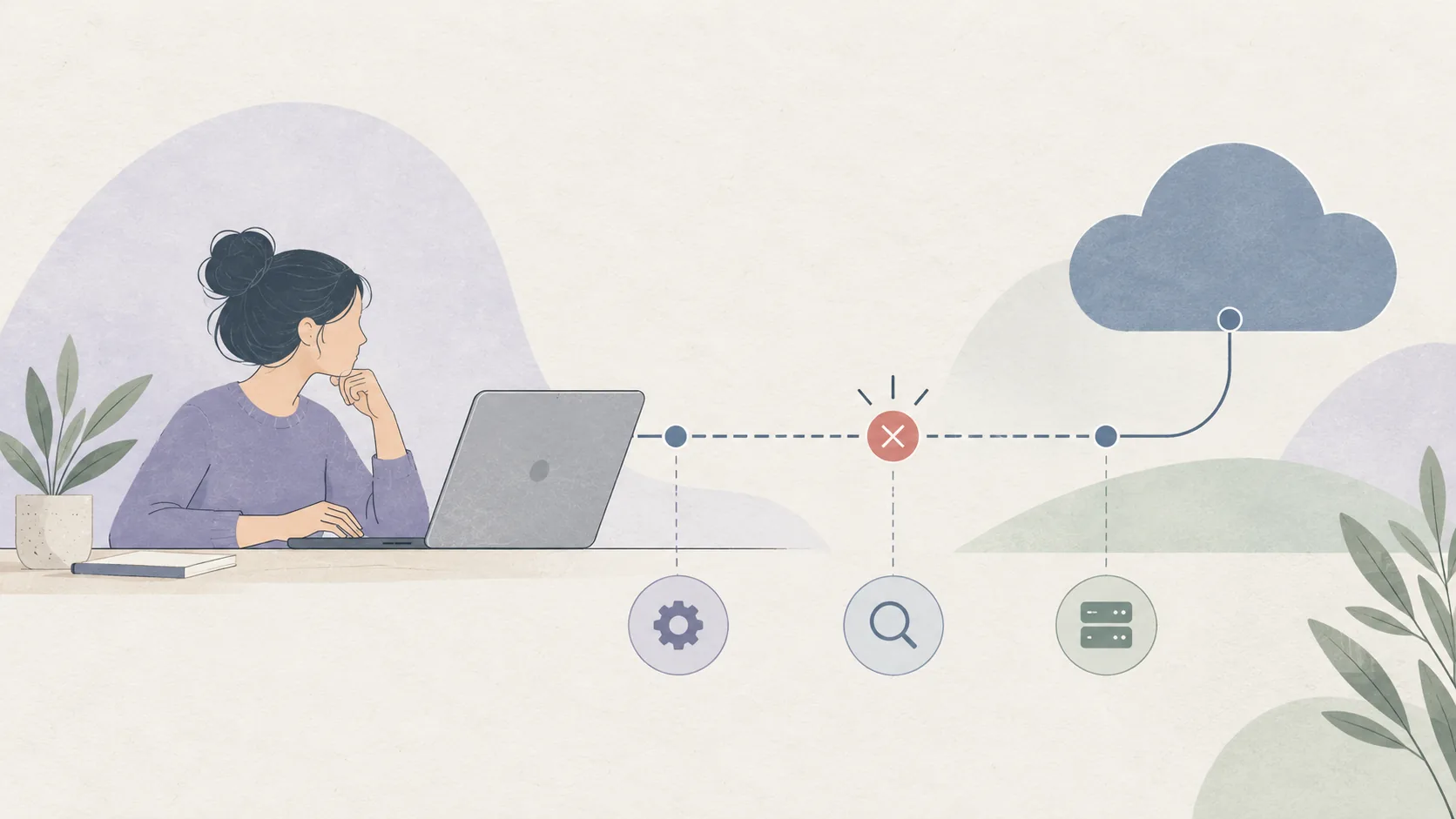
Almost every failure reported against an encrypted cloud service belongs to one of four stages: the device cannot reach the service, the device reaches the service but is not recognised, the device is recognised but not permitted, or everything works and the file state itself is wrong. The message text overlaps heavily between those stages, which is why people routinely fix the wrong one — reinstalling an app when the network was blocked, or resetting a password when a quota had been reached.
Diagnose by elimination rather than by reading. Work down the list below in order and stop at the first thing that changes the outcome.
Stage one: can the device reach anything at all?
Load an unrelated website in the same browser. If nothing loads, the problem is the network, not the app, and nothing you change inside Proton will matter. This includes captive portals that show a login page for one site and quietly block every other connection, which is the single most common cause of "the app stopped working yesterday" on shared Wi-Fi.
Encrypted storage degrades more visibly than ordinary browsing here because it cannot silently fall back to an unencrypted channel. A network that inspects or blocks such traffic produces a connection failure where a normal download would have succeeded. Testing on a phone hotspot is the fastest way to confirm or eliminate this stage.
Stage two: is the device actually signed in?
If the network is fine and the browser version of the service loads, the next question is whether the desktop or mobile client is signed in at all. Signing out is normal and unremarkable: it happens when a token expires, when the app's stored session is cleared, and when a device has been offline long enough for the session to lapse. A client that is signed out reports a connection problem because it genuinely cannot authenticate yet.
If a signed-out client keeps returning you to the sign-in screen without accepting a correct password, that is an identity-stage failure rather than a network failure, and the two are fixed in completely different ways. For a general description of how a real Proton Drive login is supposed to behave, our homepage covers it.
Stage three: is the account permitted to do this?
A signed-in client that connects and is immediately refused is usually hitting an account-side limit. Storage allowances, member seats on a shared folder, and link creation can all be capped by plan. The refusal arrives after authentication succeeds, which is why it feels like a bug rather than a policy.
Check what your plan actually includes against what you are trying to do. A shared folder that has reached its member limit produces an error indistinguishable from a network failure in a small dialog. If a feature stopped working after your plan changed or after a trial ended, this is the stage to look at.
Stage four: is the file state itself wrong?
Sometimes everything above is healthy and the problem is that two devices disagree about what exists. Sync conflicts appear when two devices were offline at the same time and both received changes, and depending on the client version and the item involved, the result can be a conflict warning, an item that silently reverts to an older version, or a sync that pauses and waits for you.
This stage also covers the silent failures, which are more worrying because nothing is reported. If a file you uploaded never appears on another device and no error was ever shown, the upload probably did not complete rather than that it completed and vanished. Verify before deleting anything locally, and check version history on the web interface, which reads the server's copy directly and bypasses any local sync problem entirely.
Eliminate the layers that look technical but are not
Two categories of reported failure are almost never the storage layer at fault. The first is browser extensions: password managers, ad blockers, and privacy tools can interfere with a session in ways that produce convincing error dialogs. Test in a private window with extensions disabled before concluding anything. The second is a device running out of local disk space, which stops a client from writing the temporary files an upload requires and is often reported as a network problem.
Both are cheap to test and both are commonly mistaken for a service fault.
Write a report that names the stage
The most valuable thing you can put in a support message is the stage you identified and the evidence for it. "It fails on hotel Wi-Fi and succeeds on a hotspot, so it is stage one" is actionable. Include the client and version, the operating system and its version, the exact error wording, the timestamp with a time zone, which devices are affected, and the last action that worked. That last detail is often the most informative line in the whole message.
Redact everything sensitive before sending: usernames, email addresses, folder names, partial passwords, recovery codes, and any notification containing an account identifier. A tightly cropped screenshot of the error text communicates more than a full window capture.
Remember what this website can and cannot do. We are an independent fan site, so we cannot inspect your account, raise a plan limit, or clear a server-side lock. Only Proton's official support channel can act on your account.
A short order of operations
Load an unrelated site. Test on a different network. Confirm the client is signed in. Compare the action against your plan's limits. Check the web interface for the file's real state. Test in a private window. Check local disk space. Then write the report naming the stage. This order resolves the majority of cases and never wastes a reinstall.